OpenAPI
Expose OpenAPI endpoints as MCP tools in the agentgateway UI playground
Expose an OpenAPI Agentgateway can connect to MCP servers that expose an OpenAPI specification. server on the agentgateway. Then, your OpenAPI endpoints become available as tools in the agentgateway UI playground.
Before you begin
- Install the
agentgatewaybinary. - Install the
uvPython package manager. - Make sure that you have
docker, such as by installing Docker Desktop. - For ARM64 machines: Install
mavento build the sample Petstore image from source.
Set up your OpenAPI server
Start by setting up your OpenAPI server. You need an OpenAPI spec, such as a JSON or YAML file, as well as a running server instance that hosts the API. These steps use the Swagger Petstore server as an example.
In your OpenAPI schema, make sure to set the URL of the server. If no URL is set, agentgateway defaults to /. Then, the paths in your OpenAPI schema get an extra slash concatenated, which can break requests. For example, /api/v1/ becomes //api/v1/.
To avoid this issue, explicitly set the URL value to / in the OpenAPI schema, such as the following example.
 "servers": [\
    {\
      "url": "/"\
    }\
  ]
Sample Petstore server
Run the sample Swagger Petstore server locally. The following steps show use Docker and Maven as an example to pull, build, and run the Petstore server. You can also use your own OpenAPI server and update the steps accordingly.
AMD64 machinesARM64 or other machines
You can pull and run the sample Petstore server from Docker Hub.
- Pull the Docker image for the Petstore server.
docker pull swaggerapi/petstore3:unstable
- Run the Petstore server on port 8080.
docker run --name swaggerapi-petstore3 -d -p 8080:8080 swaggerapi/petstore3:unstable
Build the Docker image from the source code. The example builds the image for an ARM64 machine.
- Clone the Swagger Petstore repository.
git clone https://github.com/swagger-api/swagger-petstore.git
cd swagger-petstore
- Package the project with Maven.
mvn package
- Build the Docker image for your platform.
docker buildx build --platform=linux/arm64 -t swaggerapi/petstore3:arm64 .
- Run the Petstore server on port 8080.
docker run -d -p 8080:8080 swaggerapi/petstore3:arm64
Configure the agentgateway
- From the directory where you plan to run agentgateway, download and review the OpenAPI schema for the Petstore server.
curl http://localhost:8080/api/v3/openapi.json > openapi.json
- Download an OpenAPI configuration for your agentgateway.
curl -L https://agentgateway.dev/examples/mcp-openapi/config.yaml -o config.yaml
-
Update the agentgateway configuration file as follows:
- Listener: An HTTP listener is configured and exposed on port 3000.
- Backend: Use an MCP backend to set up an OpenAPI server based on the Petstore sample app.
- OpenAPI schema: In the
openapitarget of the configuration file, set the schema source. You can provide the schema as a local file path, an inline string, or a remote URL. This example uses a local file path. - CORS policy: To use the agentgateway UI playground later, add the following CORS policy to your
config.yamlfile. The config automatically reloads when you save the file.
open config.yaml
Reference a local OpenAPI schema file.
# yaml-language-server: $schema=https://agentgateway.dev/schema/config
mcp:
  port: 3000
  policies:
    cors:
      allowOrigins:
        - '*'
      allowHeaders:
        - '*'
  targets:
    - name: openapi
      openapi:
        schema:
          file: openapi.json
        host: localhost:8080
- Run the agentgateway.
agentgateway -f config.yaml
Verify access to the Petstore APIs
-
Open the agentgateway UI to view your listener and backend configuration.
-
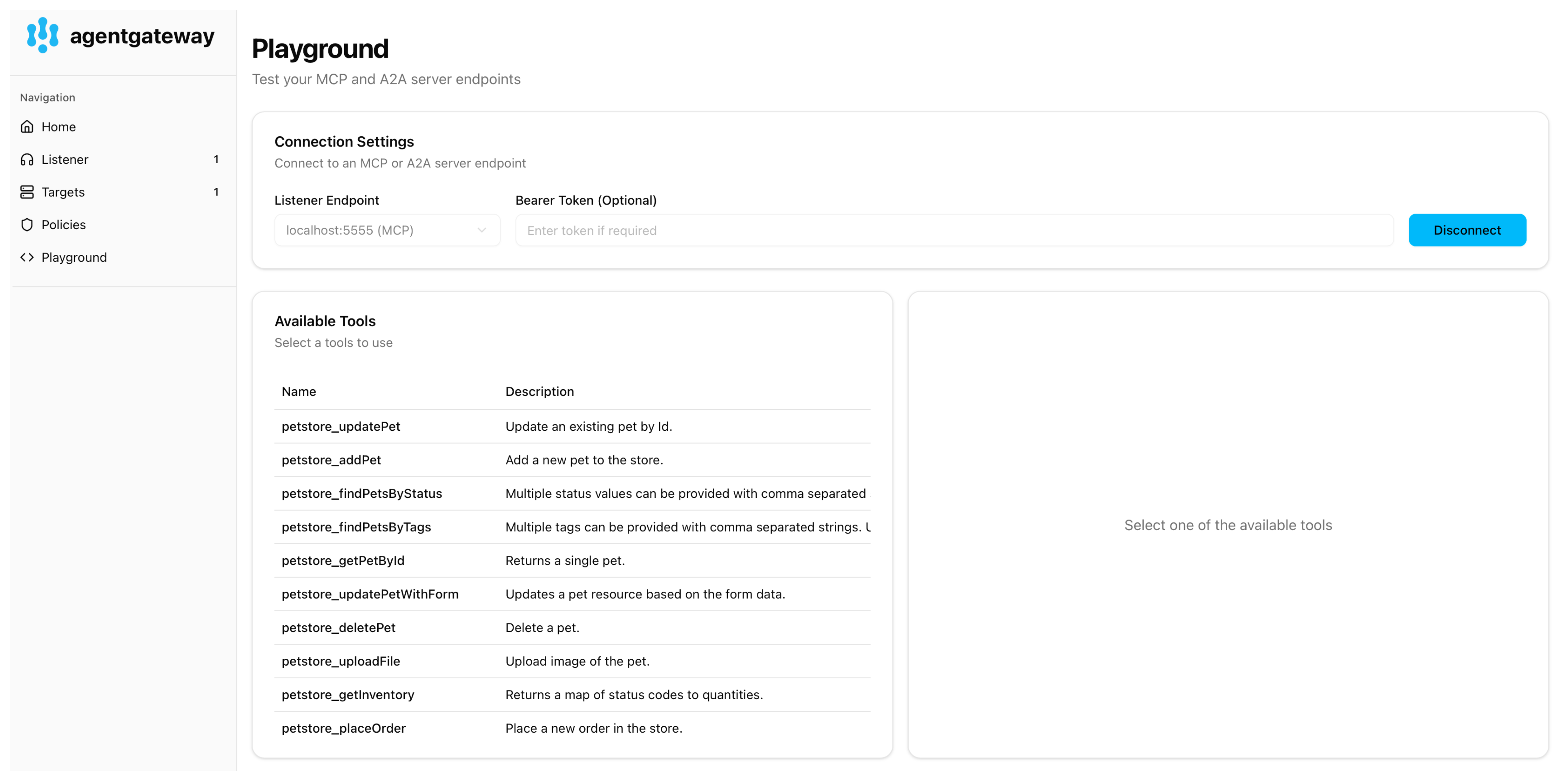
From the navigation menu under MCP, click Tool Playground.
-
If you see a banner prompting you to allow browser access, click Apply CORS. This adds the UI’s origin to the MCP CORS policy so the playground can open a session, and the configuration reloads automatically.
-
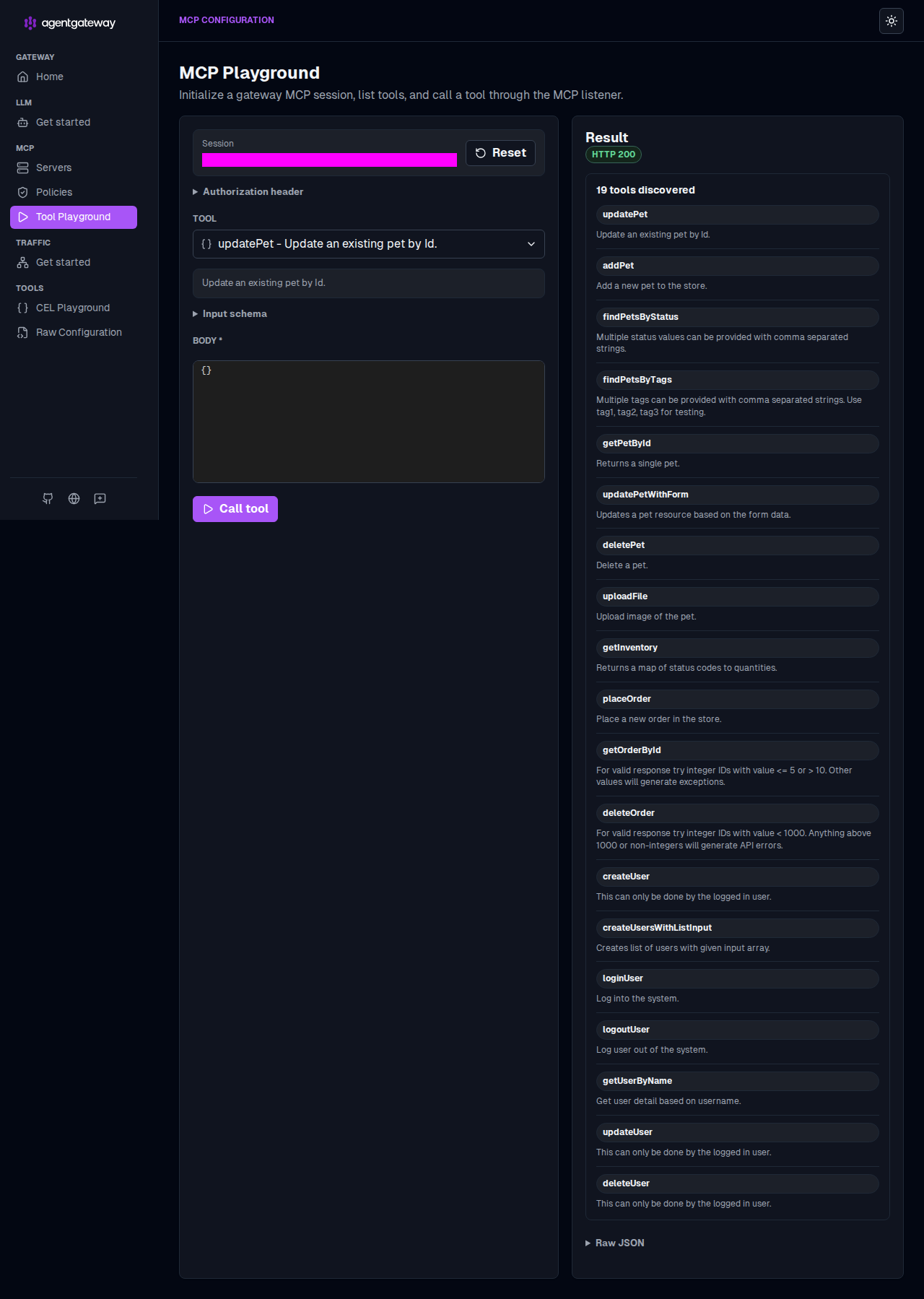
Click Initialize. The agentgateway UI opens an MCP session and lists the Petstore operations from the OpenAPI spec as tools.
-
Verify that the Result panel reports the discovered tools, such as
getPetById,findPetsByStatus, andaddPet. Agentgateway generates one tool per operation in the spec, named after the operation’soperationId.
-
Verify access to a Petstore API.
-
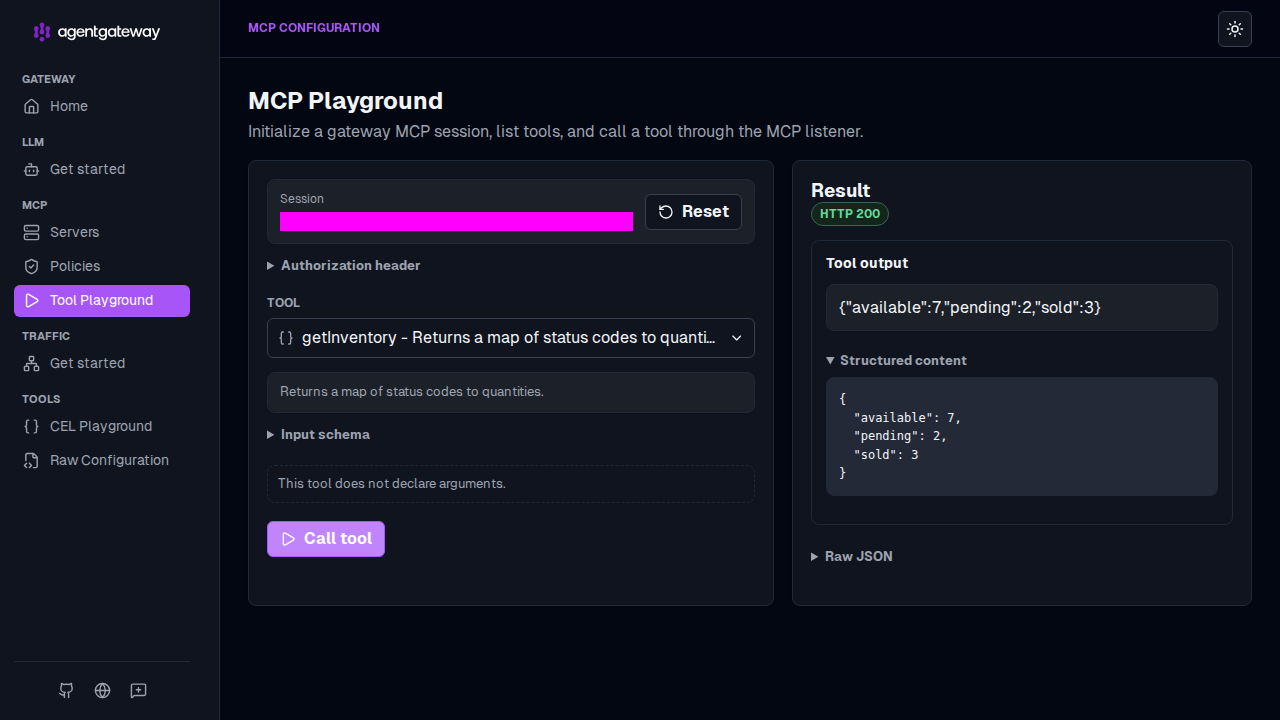
From the Tool dropdown, select the
getInventorytool, which returns the store’s pet inventory by status and takes no parameters. -
Click Call tool.
-
Verify that the Result panel returns
HTTP 200and the inventory counts in the Tool output.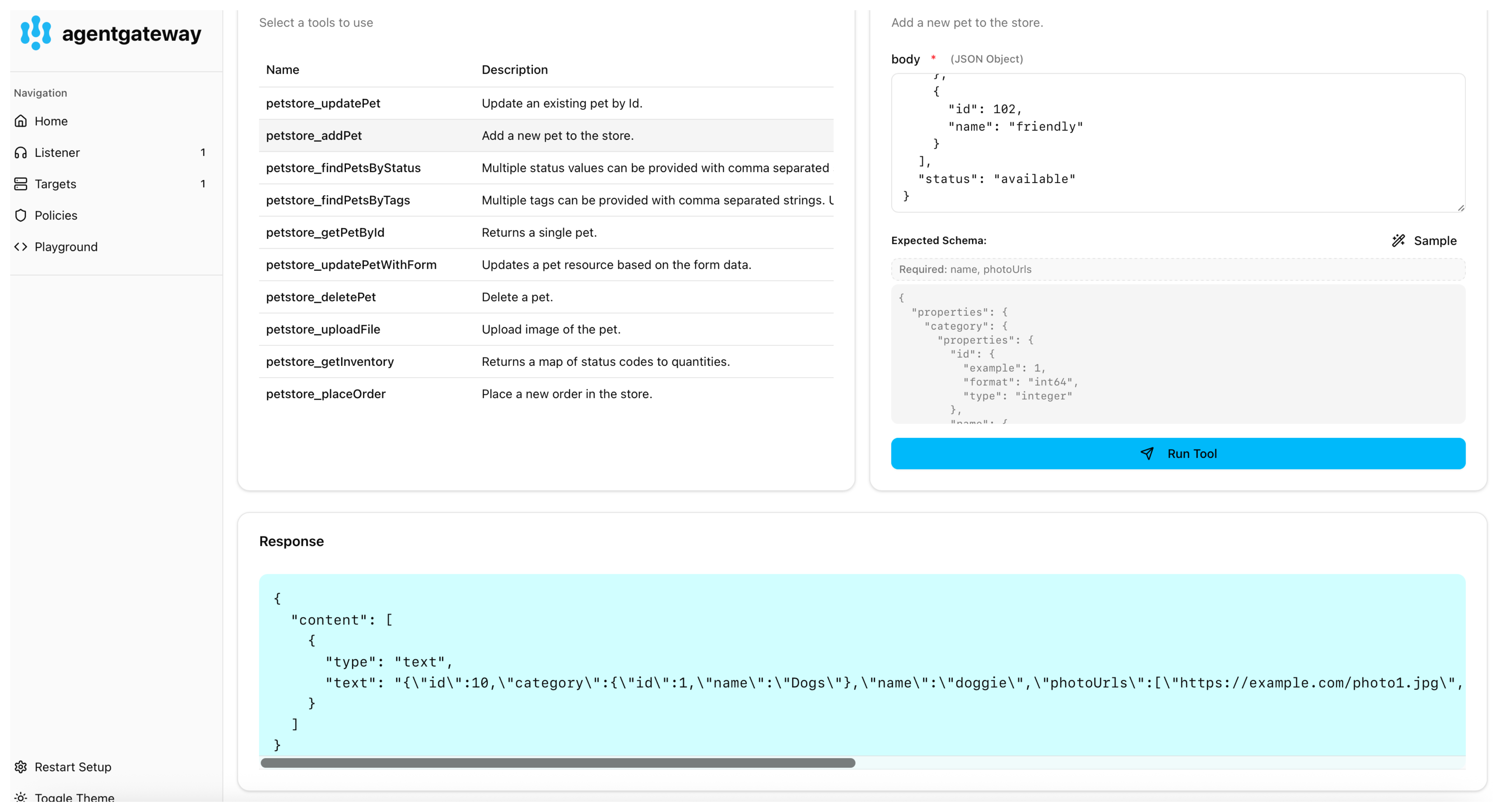
Tool names
Agentgateway generates one MCP tool for each operation in your OpenAPI spec. Each tool is named after the operation’s operationId field. For example, an operation with operationId: addPet becomes an MCP tool named addPet. Make sure each operation in your spec defines a unique operationId so that the generated tool names are predictable and do not collide.
Other configurations
Schema URL
Fetch the OpenAPI schema from a remote URL. Agentgateway retrieves the schema at startup.
# yaml-language-server: $schema=https://agentgateway.dev/schema/config
mcp:
  port: 3000
  policies:
    cors:
      allowOrigins:
        - '*'
      allowHeaders:
        - '*'
  targets:
    - name: openapi
      openapi:
        schema:
          url: http://localhost:8080/api/v3/openapi.json
        host: localhost:8080
Inline schema
Embed the OpenAPI schema directly as an inline string.
# yaml-language-server: $schema=https://agentgateway.dev/schema/config
mcp:
  port: 3000
  policies:
    cors:
      allowOrigins:
        - '*'
      allowHeaders:
        - '*'
  targets:
    - name: openapi
      openapi:
        schema: |
          {"openapi":"3.0.0",...}
        host: localhost:8080
Stateless sessions
OpenAPI backends are inherently stateless because they translate standard REST endpoints into MCP tools. You can set statefulMode: stateless on the MCP backend to skip session tracking. In stateless mode, the gateway automatically wraps each request with an initialization sequence so the upstream processes every request independently.
mcp:
  port: 3000
  statefulMode: stateless
  targets:
    - name: openapi
      openapi:
        schema:
          url: http://localhost:8080/api/v3/openapi.json
        host: localhost:8080