Stdio
Run a local MCP server as a subprocess and expose it through agentgateway over stdio.
An MCP backend allows exposing MCP servers through the agentgateway using STDIO STDIO is commonly used for local MCP server processes..
Before you begin
Install the agentgateway binary.
Configure the agentgateway
- Download an MCP configuration for your agentgateway.
curl -L https://agentgateway.dev/examples/mcp-basic/config.yaml -o config.yaml
- Review the configuration file.
cat config.yaml
mcp:
     port: 3000
     policies:
       cors:
         allowOrigins:
      - "*"
      allowHeaders:
      - mcp-protocol-version
      - content-type
      - cache-control
      - mcp-session-id
      exposeHeaders:
      - "Mcp-Session-Id"
targets:
  - name: everything
    stdio:
      cmd: npx
      args: ["@modelcontextprotocol/server-everything"]
Review the following table to understand this configuration.
| Field | Description |
|---|---|
mcp | The top-level MCP configuration block that defines how agentgateway connects to MCP servers. |
port | The port on which agentgateway listens for incoming MCP requests, such as 3000. If not specified, a default port is used. |
targets | A list of MCP targets to connect to. Each target defines an MCP server that agentgateway proxies requests to. At least one target is required. |
name | A unique name for the MCP target, such as server-everything. This name identifies the target in logs and the UI. |
stdio | Configuration for connecting to an MCP server via standard input/output. Use this for local MCP servers that run as a command. Contains cmd (the command to run) and args (arguments for the command). In this example, npx runs the @modelcontextprotocol/server-everything package. |
mcp | Configuration for connecting to a remote MCP server via streamable HTTP. Use this for remote MCP servers. Contains host (the URL of the MCP server endpoint). |
- Run the agentgateway.
agentgateway -f config.yaml
Verify access to tools
-
Open the agentgateway UI to view your listener and backend configuration.
-
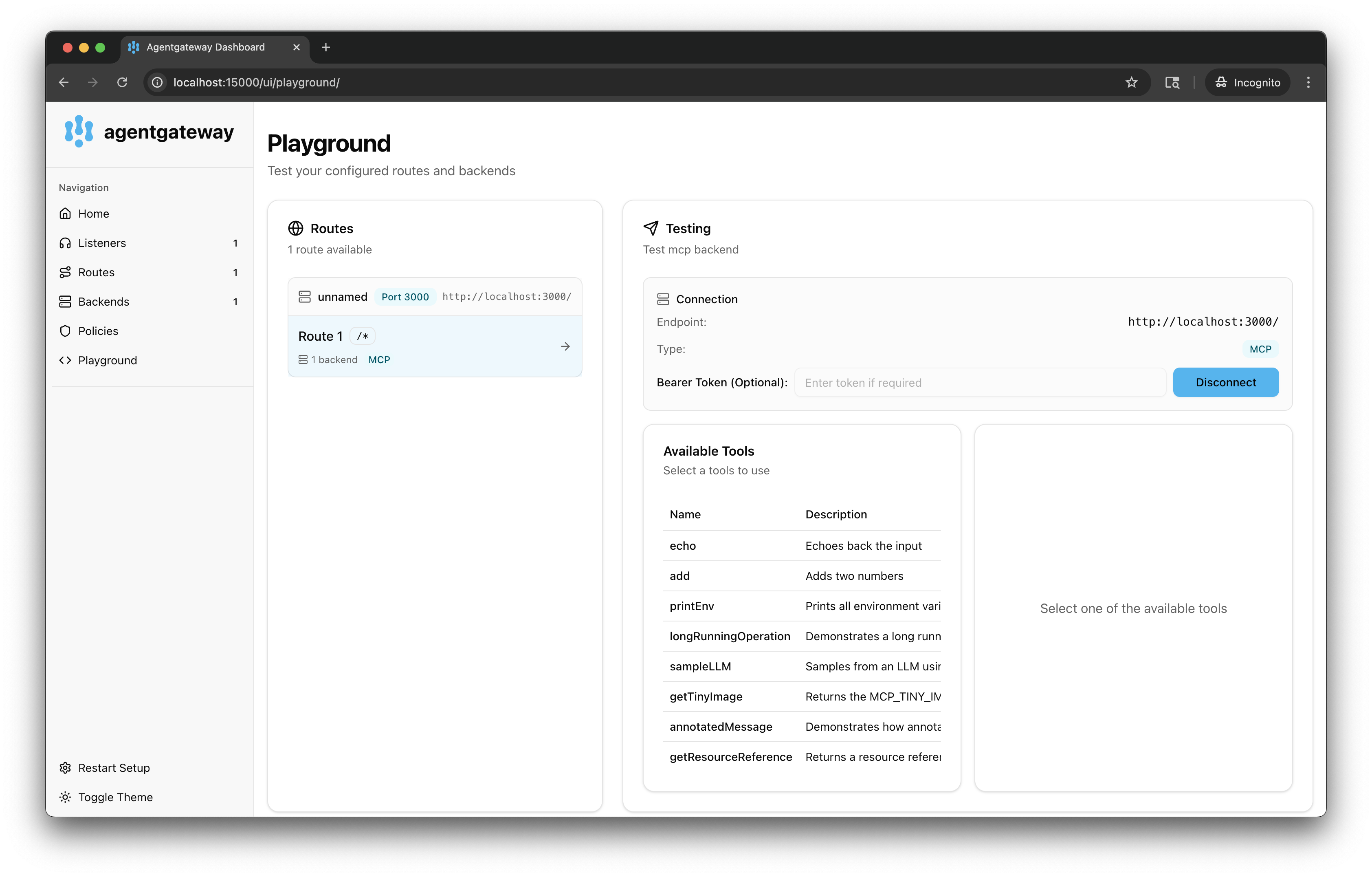
Connect to the MCP test server with the agentgateway UI playground.
-
From the navigation menu under MCP, click Tool Playground.
-
If you see a Browser access is not allowed notice, click Apply CORS so the playground can call the MCP listener from the UI.
-
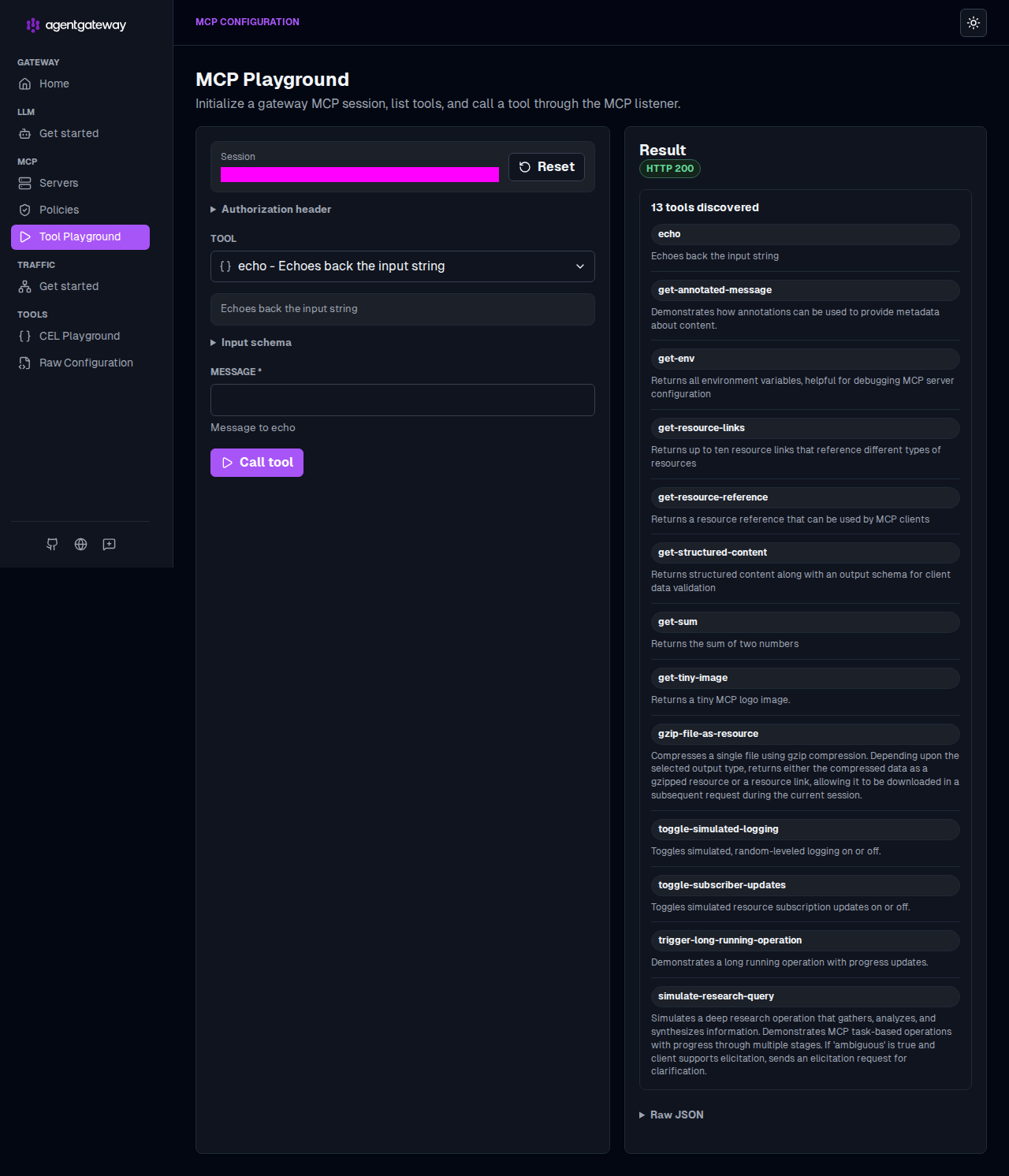
Click Initialize to open an MCP session. The agentgateway UI connects to the target that you configured and lists the tools that are exposed on the target.
-
Verify access to a tool.
-
From the Tool list, select the
echotool. -
In the Message field, enter any string, such as
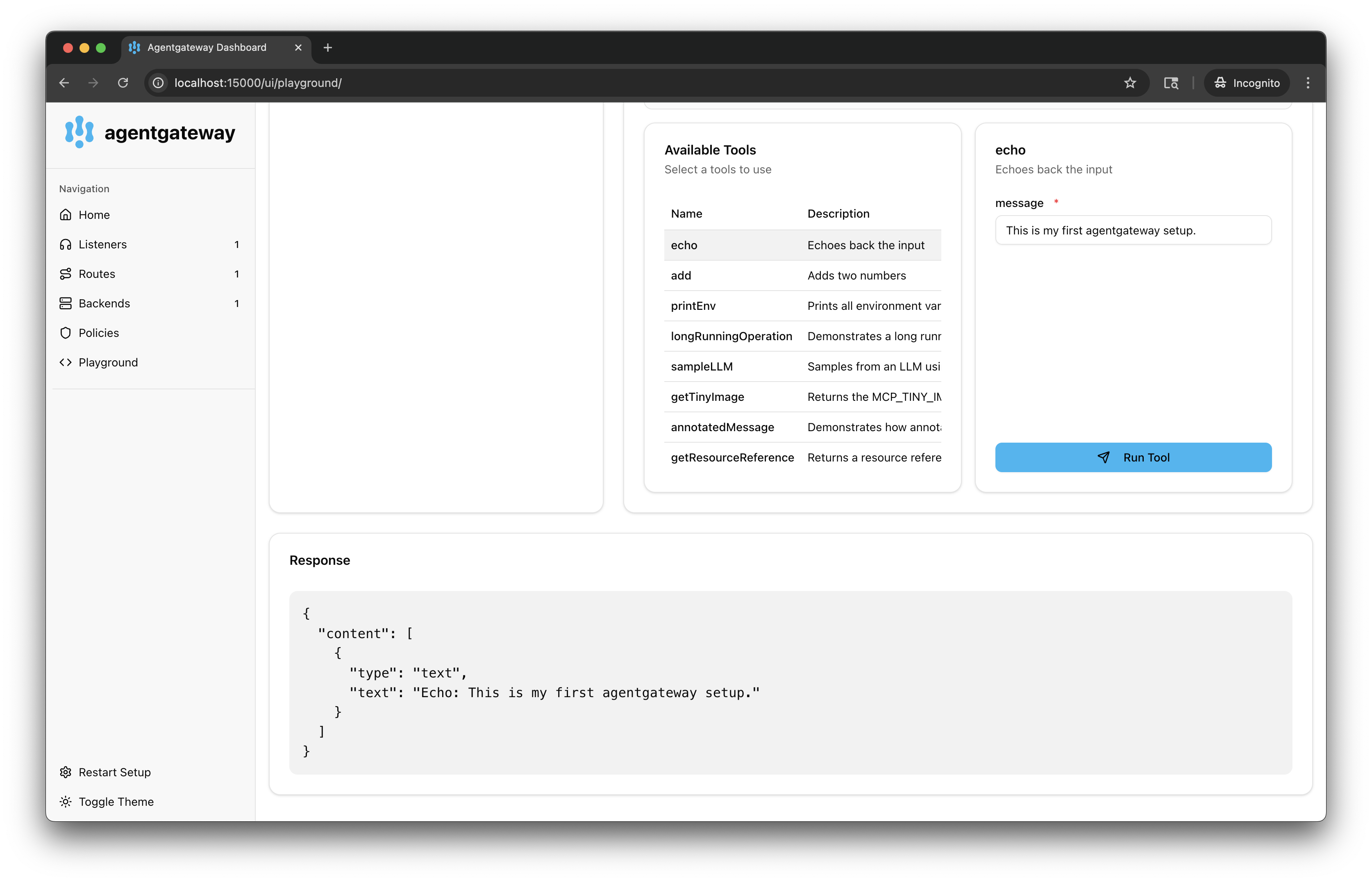
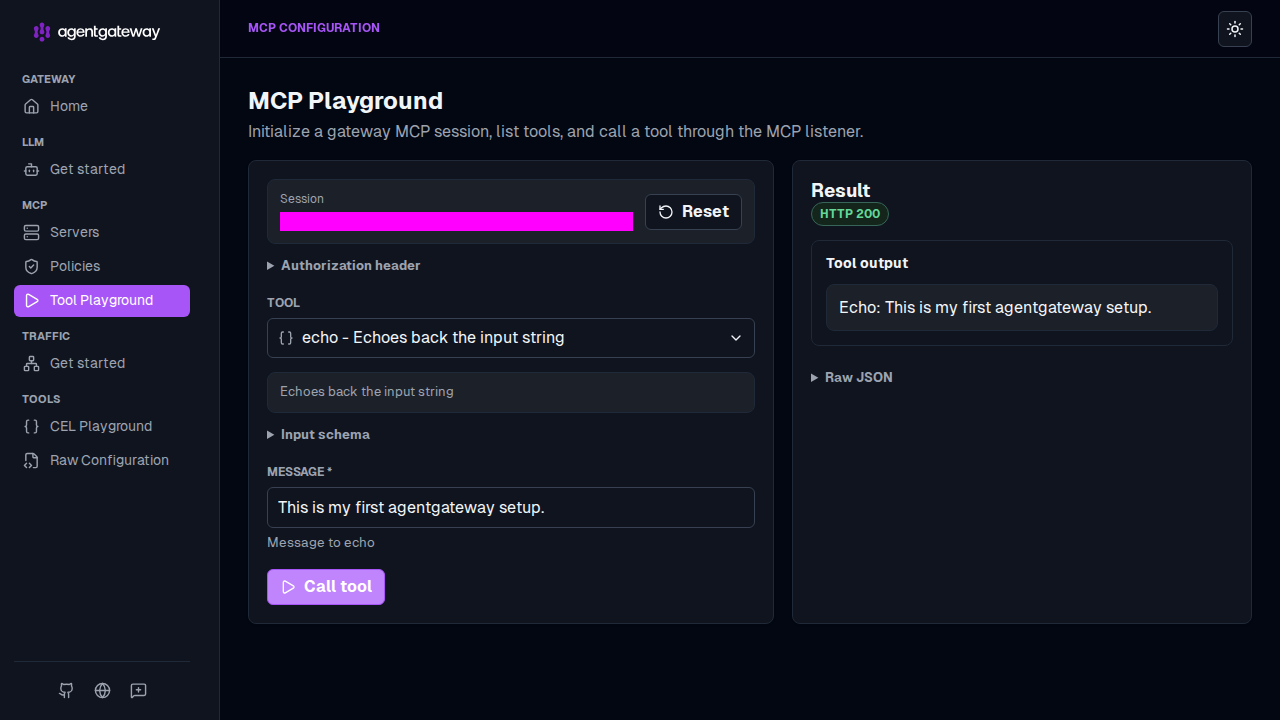
This is my first agentgateway setup., and click Call tool. -
Verify that the Result card shows an
HTTP 200response with your message echoed back.